

Before you upload any image, check four things: file format (JPG or PNG for most platforms), file size (usually capped between 5 MB and 25 MB), pixel dimensions (bigger than you think for print), and color profile (sRGB for web, sometimes CMYK for print). Get these right and you will skip the rejection emails and blurry proofs entirely.
TL;DR:
- Convert print text to outlines, or embed fonts in PDFs; linked fonts can be substituted on the printer’s system, so inspect exports on another device.
- On mugs and tumblers, inspect the full size mockup for edge cropping and placement, then approve only after checking text sharpness and color.
Table of Contents
- Technical Requirements Every Upload Needs to Meet
- Quick Specs for Common Upload Targets
- Getting Your Files Print-Ready for Apparel, Tumblers, Mugs, and Stickers
- Fixing Common Upload Errors and Confirming Your File Looks Right
- How to Embed or Link Fonts So Your Design Prints Correctly
- Recommended Tools for Editing and Preparing Your Images
- Previewing Your Upload on a Product Mockup Before You Order
- Why Pixel Dimensions Matter More Than Raw PPI for Everyday Uploads
- How We Make Print-Ready Uploads Simple
- FAQ
- Sources
Technical Requirements Every Upload Needs to Meet
Most rejected uploads come down to the same handful of mistakes, and every one of them is easy to fix once you know what to check.
Start with file type. JPG works for photos and most general uploads because it compresses well without ballooning file size. PNG is the better pick when you need transparency, like a logo that sits on a colored background. SVG, a vector format, is ideal for logos and text-based designs because it scales to any size with no quality loss. TIFF shows up mostly in professional print workflows where lossless quality matters more than file size.
File size caps vary by platform, but the pattern is consistent: social platforms tend to sit around 8 MB, marketplace product pages often cap at 5 MB, and print or stock submission sites can allow up to 25 MB or more. Keep your working files large, then export a compressed version sized for wherever you are sending it.
Pixel dimensions matter more than any other spec on this list. To figure out what you need for print, work backward from the finished size: a 4x6 inch print at 300 PPI needs 1200x1800 pixels, while an 8x10 print at the same quality needs 2400x3000 pixels. Large-format pieces viewed from a distance can get away with lower PPI, but anything held close, like a t-shirt or a mug, should hit that 300 PPI pixel target.
Color profile matters too. Export web and social images in sRGB. Save CMYK conversion for cases where a print provider specifically asks for it, since most consumer printers handle that conversion on their end.
Round out your checklist with these items:
- Match the platform’s required aspect ratio before cropping, not after.
- Strip personal metadata (location, device info) from photos before sharing publicly.
- Keep transparency (alpha channel) only where the platform supports PNG uploads.
- Remove watermarks and stray logos unless the platform explicitly allows them.
Pro Tip: Aim for pixel dimensions about 20% above the stated minimum. It gives you a buffer against cropping, compression, and layout adjustments without hurting quality.
Quick Specs for Common Upload Targets
Different platforms enforce different rules, and checking the wrong set of specs is one of the fastest ways to get an upload bounced back.
| Platform | Accepted formats | Recommended pixel dimensions | Max file size | Color profile |
|---|---|---|---|---|
| JPG, PNG, BMP, GIF (non-animated) | 1080px wide; 1080x1350 for feed | About 8 MB | sRGB | |
| Walmart Marketplace | JPEG, JPG, PNG, BMP | Up to 2200x2200px, 1500x1500px minimum for zoom | 5 MB | RGB |
| Unsplash | JPG | Minimum 5 megapixels | Varies by asset type | sRGB |
A few things worth flagging:
- Instagram recompresses every photo you upload, so starting at 1080px wide gives the algorithm the least work to do and keeps detail intact.
- Walmart’s 1:1 aspect ratio applies to main product images specifically; secondary images have more flexibility.
- Unsplash rejects watermarked photos and restricts certain AI-generated submissions, so original, camera-shot files have the smoothest path through review.
Getting Your Files Print-Ready for Apparel, Tumblers, Mugs, and Stickers
Print orders fail for different reasons than social uploads. A file that looks fine on a screen can still come out pixelated, faded, or cropped wrong on a shirt.
- Calculate your pixel target from the actual print area. A standard adult t-shirt front print running 12x16 inches needs around 3600x4800 pixels at 300 PPI. Our guide to DPI for t-shirt printing walks through the math for other sizes.
- Flatten layered files before sending them. DTF printing reads flattened artwork more reliably than a multi-layer PSD, so merge your layers and export a single clean image.
- Keep backgrounds transparent for apparel, white for mugs. Transparent PNG backgrounds let the garment color show through; mugs and tumblers generally print best against a white or solid background.
- Name and package your files clearly. Send your original layered file, a flattened print-ready version, and a proof image labeled by product (shirt front, mug wrap, sticker die-cut).
- Check for the most common revision triggers. Low-resolution logos, stray watermarks, and copyrighted artwork are the top reasons we ask customers to resend files.
Our T-shirt design dimensions guide covers preflight checks in more depth, and our logo upload guidelines walk through vector versus raster choices for anyone working from a brand logo.
Pro Tip: If your design includes small text, keep it at least 0.25 inches tall in the final print size. Small text is the first thing to blur on fabric.
Fixing Common Upload Errors and Confirming Your File Looks Right
Run these checks locally before you upload anything:
- Open the file and confirm pixel dimensions in your editor’s image size panel, not just the file size.
- Confirm the color profile is set to sRGB (or CMYK only if a print provider asked for it).
- Check for an alpha channel if your platform requires transparency.
- Look for leftover layers, watermarks, or stray guide marks before flattening and exporting.
If a platform rejects your file, the message usually points to one of three things: wrong format, file too large, or dimensions below the minimum. Recompress with a tool like TinyPNG for size issues, resize in Photoshop or GIMP for dimension problems, and re-export as JPG or PNG if the format was the issue. If something still looks off after you have checked format, size, and dimensions, reach out to support with the original file attached and a screenshot of the error.
How to Embed or Link Fonts So Your Design Prints Correctly
Fonts cause more print delays than people expect, mostly because the font that looks perfect on your screen may not exist on the printer’s system.
The safest option is to convert text to outlines (sometimes called “create outlines” or “convert to curves”) before exporting your final file. This turns the text into vector shapes, so the printer sees the exact letterforms you designed with, no font file required. Most design programs, including Adobe Illustrator and Affinity Designer, have this as a one-click menu option under Type or Text.
If you need the text to stay editable, embed the font directly into the file rather than linking to it. PDF exports usually include an “embed fonts” checkbox in the export settings. A linked font, by contrast, only displays correctly on a machine that has that exact font installed, which is rarely the machine doing your printing.
For web uploads, the rules are different. If you are using a custom font on a website, use a licensed web font service or a properly licensed font file (WOFF2 is the standard) rather than embedding a desktop font you have not cleared for web use. Mixing up desktop and web font licenses is a common and avoidable compliance mistake.
Whatever route you take, always open your final export on a different device before submitting it anywhere. If the fonts shift or get substituted, you will catch it before a print shop does.

Recommended Tools for Editing and Preparing Your Images
The right tool depends on what you are fixing, not on having the most expensive software license.
For resizing and basic cleanup, GIMP is a free option that handles pixel dimension changes, format conversion, and background removal without a subscription. Photoshop remains the standard for layered design work, especially when you need precise color profile conversion or detailed retouching before a print order. Affinity Photo is a one-time-purchase alternative that covers similar ground.
For vector work, logos, and anything that needs to scale cleanly, Adobe Illustrator or the free Inkscape are the go-to choices. If your design started as a raster logo and you need it in vector format for apparel or sticker printing, our guide to preparing logos for t-shirts covers the conversion process.
For quick compression before upload, TinyPNG and Squoosh both reduce file size with minimal quality loss, which helps when a platform’s cap is tighter than your original export. And for a fast gut check on pixel dimensions versus your intended print size, the poster resolution calculator does the math for you so you are not guessing at PPI targets by hand.
None of these tools require advanced design skills. A straightforward resize, a format conversion, and a quick compression pass solve most upload problems before they start.

Previewing Your Upload on a Product Mockup Before You Order
A mockup preview is your last chance to catch a problem before it becomes a shirt, mug, or sticker you cannot take back.
Start by uploading your final, flattened file, not a work-in-progress version with placeholder text or guide lines. Most product pages generate a mockup automatically once the file loads. Zoom into that preview at full size and check three things: is the image centered the way you intended, does the color look accurate against the product background, and is any text or fine detail still sharp at the size it will actually print.
Pay close attention to cropping on curved products like mugs and tumblers, since the print area wraps around the surface and the edges of your design can shift more than they would on a flat shirt. If the mockup shows your design shifted or cropped unexpectedly, adjust the placement in the upload tool rather than assuming it will correct itself at print time.
Once the mockup looks right, approve the proof. That approval is typically the last step before your order goes into production, so treat it as your final quality check, not a formality to click through.
Why Pixel Dimensions Matter More Than Raw PPI for Everyday Uploads
Changing a file’s PPI metadata without adding pixels does not add detail. It just relabels the same information, which is why pixel count, not the PPI number in your file’s metadata, determines how sharp a print will look. PPI still matters in final press-ready PDFs and professional print workflows, where a provider needs that metadata for layout software. For nearly everyone else, checking pixel dimensions against your print size solves the problem faster than chasing a PPI number.
— Jon Will
How We Make Print-Ready Uploads Simple
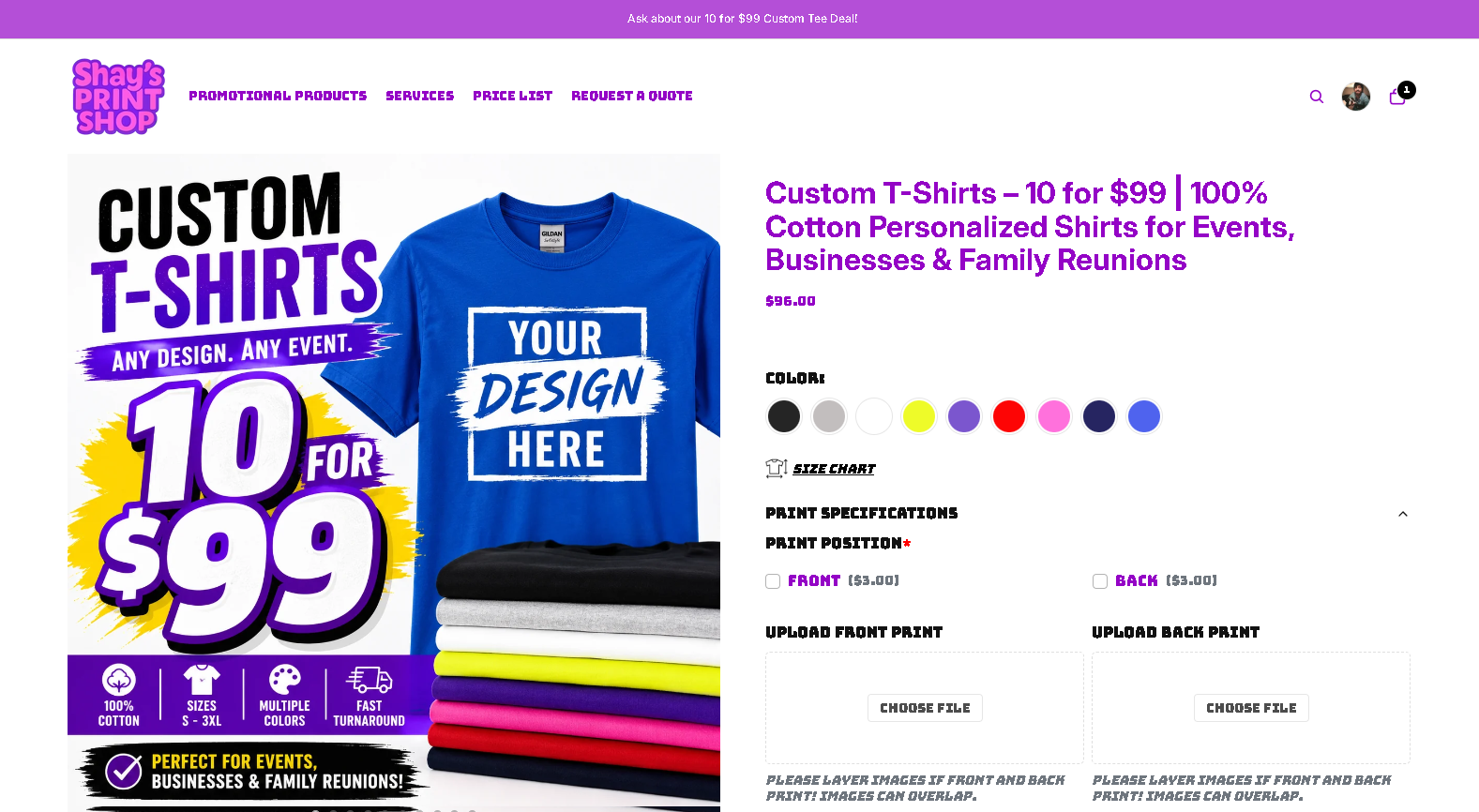
We built our ordering process around the same checklist this guide walks through, so sending us a print-ready file is straightforward rather than stressful. Our bulk pricing gives you a simple way to turn a logo, photo, or design into real apparel for your event, team, or family reunion without guessing at specs.
Before you place an order, have these ready:
- A flattened, high-resolution file in JPG or PNG format.
- Pixel dimensions sized for your product (we are happy to confirm the target for your specific item).
- sRGB color profile unless we ask for something else.
- A proof approval once we send over the mockup.
Start with our Custom T-Shirts page for bulk shirt orders, or check custom tumblers and personalized photo mugs if you are planning a gift or party favor run. Upload your file, approve the proof, and we handle the rest.
FAQ
What are the recommended Instagram post sizes for 2026?
Instagram recommends exporting feed images at 1080 pixels wide, with 1080x1350 for portrait feed posts and 1080x1920 for Stories and Reels. Use sRGB color and JPG format, and keep the file under about 8 MB to avoid rejection or heavy recompression.
How do I upload high quality images?
Export your file at the pixel dimensions the platform recommends, in sRGB color, and avoid compressing it more than once. For print orders, calculate pixel dimensions from your finished print size using a pixel-target table rather than relying on a DPI number alone.
Is 300 pixels high resolution?
300 pixels on its own is not a resolution measurement, since resolution depends on pixel count relative to the finished size. A photo needs roughly 1200x1800 pixels to print well at 4x6 inches at 300 PPI, so 300 total pixels would only support a very small print.
What are the requirements for uploading a photo?
Most platforms require JPG or PNG format, a file size under their stated cap (commonly 5 MB to 8 MB), and pixel dimensions that meet their minimum for the intended use. Marketplace platforms like Walmart also require RGB color and a specific aspect ratio for main product images.
Sources
- DPI vs PPI vs pixels for printing: Get high-quality files in 2026
- Unsplash Submission Guidelines | Unsplash Help Center
0 comments